April 14, 2011

Limits are evil

In my work as a consultant I meet many different VMware environments on a daily basis and from time to time I'm called out to troubleshoot performance issues. For troubleshooting such issues I've compiled a list of things to be aware on vmfaq.com: I need more performance out of my VMware environment

This article has been the most popular article on that site for quite some time. That list is not meant to be a final solution to all problems, but more like a quick list that will rule out the most common errors. Out of those 10 steps listed there, there is one thing that I've seen being the root cause for many issues that I've seen lately. This problem normally involve one or more servers that are having bad performance and even after the local vmware admin has tried to tune the systems with more ram and vcpus the performance is still bad.

Take a look at this screen shot:
As we can see the majority of this VMs memory has been Ballooned. Let's also take a look at the memory resource tab of this virtual machine:
This VM is setup with 4 gigabytes of ram, but has a limit set at 1000 megabytes (just below 1 Gigabyte). This VM probably started it's life with 1000 megabytes and was later given 4 gigabytes. While it had only 1000 megabytes of ram, performance was probably as good as you can expect from a VM with 1000 megabytes. Since it was given more memory, 1 gigabyte was probably not enough for it's workload. Increasing the memory to 4 gigabyte while the memory limit was still set at just below 1 Gigabyte would however not give the VM better performance. The guest OS would believe that it had 4 Gigs of ram, but in reality it had just as little as before. This means that the performance after the memory increase was actually worse than before, since the guest OS is more prone to internal swapping when it believes more memory is accessible than there really is. VMware swap was also active, but only 23MB.

After removing the memory limit we could quickly see how the balloon deflated quite quickly:

This step helped a lot for this VMs performance. How about other VMs on this system? Was there other VMs affected by this same problem? Yes, there sure was:
I'm pretty sure these limits have not been set by purpose and all the VMs affected are "old" VMs that have survived an upgrade or two. Some of them started their lives as physical servers. I'm actually not sure at what point these memory limits have been set, but this scenario is not unique. This is an issue I'm seeing on a regular basis for systems that has been around for a while. Some even have templates with limits configured, making it an issue also for newly deployed VMs.

These VMs often also have cpu limits set and also those should be removed. The cpu limits I have seen have  however affected the performance in a much lower degree than the memory limits. This mainly because the GHz of the cpus today are quite similar to the GHz of cpus five years ago.

The topic of this posting is "Limits are evil" and I think they really are evil when you don't know they are there. I can surely see the usefulness of limits in many situations as well, but there's a huge difference between doing something when it's a thought through planned setting and inheriting a setting that you wasn't aware of.

April 13, 2011

Running mbralign from vMA to align disks

It's a known fact that operating systems such as Windows Server 2003 and older are not aligning their disk partitions optimally in their default setup. Different storage systems are affected differently by this issue, and there are several third party tools available to solve this issue.

One of the most commonly used tools is mbralign from NetApp. It's a tool that is available to NetApp customers through NOW. It was earlier a standalone tool (actually two tools: mbrscan and mbralign), but is now part of FC Host Utilities for ESX. This is a tool meant for installation on ESX hosts and is incompatible with ESXi which is now the new default hypervisor.

It *is* however possible to use mbralign from vMA if you're having NFS data stores. If you're using block storage (FC/iSCSI/FCoE) you will need to wait until NetApp releases mbralign for ESXi. To mount NFS data stores you must first start the nfs and portmap services and then mount the data stores in the vMA. Note that the FC Host Utilities will not install into vMA by default.

The solution is to manually unpack and move the directories into the right place.


To make things easier we put the new binary directory into PATH by editing the ~/.bashrc file:
When we now navigate to our mounted NFS store to a VM that we want to align we need to first check that this VM is powered off and does not have a snapshot. If you align a snapshotted VM you will get into trouble.


You can run "sudo mbralign -scan filename.vmdk" to check if the VM disk needs to have it's partitions aligned. To align you simply run "sudo mbralign filename.vmdk"
One of the advantages by running this from vMA compared to running it from the Service Console is that it gives much better performance. Aligning 20Gb took approximately 7 minutes on vMA, something  we would estimate would take at least 30-50 minutes from the Service Console.

To check what we gained from this alignment operation we ran iometer before and after and the results were as follows:
Unaligned
Aligned
These numbers speak for themselves. Alignment had a good impact on this system.

April 8, 2011

Fusion-IO, a technology that allows running hundreds of virtual desktops per host

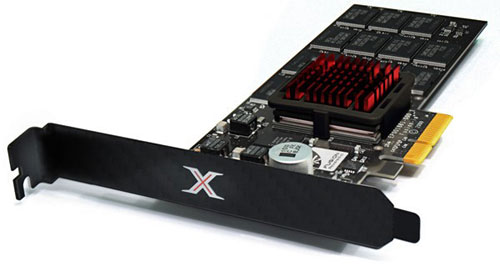
Fusion IO has been around for several years and I’ve been aware of their OEM relateionships with several OEM vendors that has reselled their technology since I first talked to them at VMworld 2009 in the Solutions Exchange. I have however never seen this technology in action until recently. Fusion IO delivers PCI-e and Mezzanine cards that you put into your server host and it will show up as a disk drive. They have several models of different size, price and performance. They are using NAND Flash technology that brings performance to a new level. The best performing cards can deliver up to a million random iops according to their sales people. The largest drive is 5TB and takes up two full size PCI-e slots.


At VMware Forum in Oslo Fusion IO had a stand where they showed off a single HP DL380 server running 222 windows XP VMs with linked clone technology on a single Fusion IO drive. They used AutoIT to script a workload in all the VMs and you could see on four big TV screens the desktop of each windows XP desktop and the activity there.


There were Excel spreadsheets being used, Word, and other applications. By looking at the advanced performance graphs in the vSphere Client we could see that the activity generated ~32000 IOPS on average. This was across a single FusionIO card. I have to add that the cpu of that host was running constantly at 100% load. To display the remote displays on the wall they used VNC.


By using a local disk you lack functions such as VMotion, DRS, FT, etc. In a VDI environment it may not be important for everyone, but there surely are situations where you will start missing these functions. Doing administrative work during work hours will no longer be available and in a resource contention situation you will be unable to move a workload away. You may be able to solve much of this by using Storage VMotion and Storage DRS (when available), but will still require a few extra steps that may put an administrator out of the comfort zone.  This can of course be solved with a virtual storage applicance or with a network clustered filesystem such as Lithium.


Some of my colleagues in Atea Denmark have been running some iometer tests of a single virtual machine and as we can see that the results are very good. 


They also found that cloning of a single VM from template on RAID10 with 4 SAS disks took 330 seconds. Cloning 10 VMs on FusionIO took 202 seconds. They were also able to install a VM with Windows Server 2008R2 in 6 minutes (approx the amount of time POST takes on some newer servers).


All in all I think we can agree that this NAND Flash technology is pretty impressive and can be a solution for man IO intensive workloads such as VDI, databases, data warehouses, etc. FusionIO is currently only supported on ESX, but will soon also be supported on ESXi. While it does come up as a local disk drive, you will not be able to boot from it.

April 4, 2011

VMware, HPC clusters and clustered file systems

Lately I’ve been involved in setting up an HPC cluster. HPC clusters predate VMware solutions quite a bit and the software used typically had their initial versions 15-20 years ago for non-x86 architectures. I’ve found that HPC clusters do actually share quite a bit of functionality that we see in vCenter. They use a shared file system, you have OS templates that you deploy, and you can manage all of your nodes from a single GUI. In addition to that they have a batch job scheduler that will put some processing tasks onto the nodes and the analogy in the vCenter world is DRS and load balancing VMs upon poweron.


In most VMware environments the shared storage is normally a SAN or NAS array, but in this cluster world we have disk nodes with local disk controllers and local disks. These nodes each has a stripe of a file system that is shared out over Infiniband. I believe the most common HPC file system is Lustre, but the one used in the setup we used was FraunHofer Parallel Cluster File System, normally shortened to FhGFS (wonder why it’s not shortened to FHCFS...?).


Each node had 25 SAS disks delivered from a MDS600 shelf and a P700m disk controller with 512MB ram. Since the file system is striped over these nodes it means that you get the performance from all the nodes when doing disk operations. As we had four nodes with local disks it meant that we had a 50TB file system that was shared among all processing nodes. When reading a file, all four disk nodes would give you their slices of that file. And this all happens over Infiniband, which is a low latency high speed network.

The data sets that I have seen so far in this HPC environment reminds me of what we see in a VM environment. There are typically a set of config files (xml text files) and some larger binary files. The binary files I’ve seen so far vary in size from a few hundred Megabytes to a few hundred Gigabytes.

In a VMware environment shared storage has been key to get all the basic cross-host functionality that is administered from vCenter working. A dedicated storage system can bring you much more functionality and scalability than a traditional system with direct attached storage (DAS). The possibility of using the local disks for VMFS is possible in a VMware environment as well if you’re using third party tools like LeftHand VSA, StorMagic SvSAN or similar. Doing it in such a way does however add an extra layer here that can affect performance.


Traditional HPC file systems are using Infiniband, but now that we’re seeing 10GbE being introduced in more and more networks, we also see 10GbE being used for such file systems.

Nowadays we also see solid state disks being introduced. In addition to that we’re also seeing Fusion IO coming with even faster technology known as solid state flash. This technology will easily outperform any traditional SAN/NAS, but is still quite expensive. The price on solid state disks has dropped a bit during the past couple of years and we will probably see an increased drop in price as it goes more mainstream. A FusionIO drive is still very expensive, but is also faster than anything else I’ve seen out there.


Will we ever see the clustered file system VMFS getting functionality similar to what we’re currently seeing in a HPC clustered file systems? A posting by Duncan Epping about possible new features of future ESX versions points to a VMware Labs page called “Lithium: Virtual Machine Storage for the Cloud” and if you go in and read that pdf whitepaper it shows that VMware has actually developed a clustered file system quite similar to what is being used today in HPC clusters.
We don’t know if this functionality is ready for the next ESX version, or if it’s coming at all. But is shows that such functionality is something they have been evaluating for quite some time, and it can be present sooner, later or never. VMware is still a company owned by the storage company EMC and who know what EMC think of such functionality?


A modern SAN is however providing much more functionality than a traditional SAN, and a clustered file system will in reality be a JBOD stretched over several nodes and EMC will not lose all their market share because of such a file system, but for some customers I’m sure it will be a viable alternative instead of a low end SAN/NAS.

April 2, 2011

Baselining disk performance for fun and profit

Whenever I have setup a new VMware system I normally run a few rounds of iometer in order to measure the performance of the system. By doing this I can verify if the system is performing as expected, and if it's not I can tune the system until it does. If it's a new type of system I can see if there are others with a similar system who have posted their results to the VMTN that I can compare my results with.

As long as a system has enough memory, disk performance is the most common bottle neck. If we after having the system up and running in production for a while run into performance issues, we can in the process of narrowing down the bottle neck compare our new iometer results with the old ones that were captured when the system was new.

The video above uses a 5MB test file. On a few newer storage arrays you may need to use a larger test file in order to get useful results.

If you haven't read through the VMTN threads before, please have a look to find some examples of people who have uncovered issues with their systems and fixed them. As quite a few people didn't fully understand how to get the right numbers of the resulting csv file I put up a little web page that will take care of that. It should now be so easy that even your mother could do it :)

Useful links:
iometer results
I need more performance out of my VMware environment
http://www.iometer.org/
Open unofficial storage performance thread
New open unofficial storage performance thread

Better than the real thing


Virtually anything is impossible
A lot of people seem to have a subconscious opinion regarding the word “virtual”. It is used in many different contexts and it’s often a word with a bit of negative load. Probably because the “real thing” is so much better. We have virtual memory, virtual reality, virtual private networks, virtual tour, virtual particle, virtual world, virtual sex, virtual machine, virtual artifact, virtual circuit, etc… This listing could be much longer, but you get the idea.. Most of these virtual entities are not considered equally good as their physical counterparts.

People who are not very familiar with the current state of virtualization and cpu technologies may have heard that virtual machines are not equally good as physical ones and that they may only be used for “low hanging fruit”  or maybe just testing and development. As a consultant I meet people from time to another who have systems that are so special that they will not consider running them inside virtual machines. They are concerned about the performance. Some are concerned about security. Or  availability. Latency. Stability. Yes, there’s an endless list of things that people worry about. An ISV told me that their application suite wouldn’t work at all in a virtualized environment.

Lets have a closer look at the current state of these issues with the latest technology:

Performance & Latency
Project VRC revealed in their newly released report that by virtualizing a 32 bit XenApp farm on vSphere 4.0 with a vMMU (RVI/EPT) capable cpu you would get almost twice as many users on the system than they did last year (with the software and hardware available back then).

VMware has also shown that with an extra powerful storage system (3xCX4-960 with solid state drives) you could achieve over 350 000 random io/s from a single ESX host with only three virtual machines running. Latency was below 2 ms.  Even though such a storage setup is highly unusual amongst today’s data centers it shows that the hypervisor is not a limiting factor.

These things still doesn't mean that you should avoid tuning your application load if needed.

Security
It’s not a secret that a large part of the technology that VMware is utilizing is derived from research done at Stanford University by VMware fonder Mendel Rosenblum and his associates. A few years ago there was a research paper released titled "A Virtual Machine Introspection Based Architecture for Intrusion Detection”. This technology is present today as an API for third party vendors to integrate into. It allows for monitoring of cpu, memory, disk and network. Yes, you can monitor all of the core four with this API that is known as VMsafe.

Several of the established security vendors such as (EMC) RSACheckPoint,(IBM) ISSTrend Micro and others have partnered up with VMware and are delivering security solutions that support parts or all of this stack. This means that you can have all your VMs firewalled even if they live on the same subnet in the same VLAN. It also means that you can detect if any malware is infecting a VM even if it has no antimalware agent installed. To have VMs on the same subnet protected by a switching firewall in the physical world is also possible if you’re using Crossbeam or similar, but these devices are not known to be cheap.

A quick diagram from one of these products quickly shows how such a setup can help secure an environment:

These kind of security protections are better than the real thing. In the physical world you have no way of looking into the memory or cpu of a computer without installing an agent inside the operating system.

Even without a third party product you can get better protection than physical. If you have a DMZ network with several hosts, these can normally access each other through the network (not protected from each other) so the solution is often to have many VLANs separating these services making the setup more complex to manage. With VMware’s distributed switches you can establish private VLANs in  “Isolated mode”. This means that the VMs on the same Isolated PVLAN will only be able to communicate with hosts on the non-local network. The neighboring DMZ server in the same subnet will be invisible and inaccessible. These things make the virtualized networking better than the real thing.

Stability & Availability
VMware’s hypervisor has been here for almost 10 years now. ESX is running a relatively small kernel (vmkernel) that is known to be “dead stable”. The only times I’ve seen it have problems is if there’s a bad hw component.

In addition to this, VMware will load balance your workload across all of your hosts with DRS. With FT VMware will run a single load on two separate hosts in case of hw fault. With VMware HA it will start the VMs that were running on the dead host at other hosts in your cluster. With VMware DRS it will take care of your whole infrastructure in case of a total datacenter crash. All this without configuring anything special in any of the VMs.  Traditional clustering typically has a quite large administrative overhead, is complex to setup and (almost) impossible to test. With SRM you can even test your DR plan while the rest of your environment is up and running.

Conclusion
All of this makes a virtualized environment much better than a physical environment. Does this mean you should virtualize 100% of your workload? No, there are still a few exceptions, but 97% of the systems can typically be virtualized without any issues. Existing customers are not migrating their critical systems to VMware despite of virtualization.  They are running their critical systems on VMware because of the extra benefits virtualization is giving their infrastructure regarding HA, DR, security and management.

To ESXi and beyond


Like I also blogged about in a previous blog posting, the Service Console of ESX is being discontinued and that leaves us with ESXi as the only option for the future.  vMA will take the Service Console’s role for command line stuff and you only need one of these for managing many servers.

First I’d like to give a shortened history lesson so we can better understand where we are today and where we’re heading. I didn’t include every new feature here, but only those I regard as the most important ones regarding the evolution from tightly bound systems to stateless ones.

VMware have provided technologies that for each iteration has had a greater level of statelessness than the previous version.  Version 1.x of ESX could run one VM per physical cpu. When ESX 2.0 was released in 2003 you could no longer count the cpus to get the number of VMs anymore as this limit was removed. Instead of binding each VM to a cpu it would load balance all of the running VMs across all available cpus, and it could now also run multiple VMs per cpu. After the introduction of Virtual Center in 2004, data center admins no longer needed to know which physical server a VM is running on. Virtual Center gave you the ability to administer all your ESX hosts from a single interface and with VMotion you could move your VMs from physical host A to B without any service interruption.

ESX 3 was released in 2006 and brought in new important features such as a  Distributed Resource Scheduler (DRS) and Distributed Availability Services (VMware HA). These new features would ensure that the performance of your environment was optimal at any time and that all of your VMs was running, even if a host died or if a VM or two would start eating up a lot of resources.

ESX 3.5 was released late in 2007 and came with the ability to migrate VMs between different cpu models (EVC), the ability to change datastore for your VMs while running and a software update utility for hosts and guest VMs. ESXi (or 3i as it was called back then) was also released at the same time and could do everything that a full blown ESX host could do, except for the missing Service Console.

In 2008 we had the release of Site Recovery Manager (SRM). Having a recovery site (a datacenter at a remote location that will host all your services in case of a disaster) is something that has existed in the physical world for quite some time, but there has not been a unified solution that would work equally for all kinds of services.  Virtualization is a game changer here as it uncouples the servers from their physical hardware and with SRM you could also bring up a copy of your main datacenter at the disaster site within minutes by the click of a single button.

With vSphere 4.0 they also introduced host profiles and distributed switches for making it easier to deploy the same configuration across multiple ESX hosts. SRM was also updated to support two active data centers.


VMware demoed booting of ESXi from the network back at VMworld 2009, and it is surely something that will be coming as an official feature from VMware in the future. By doing this you get the same advantages that you get with your VMs today as you’re unbinding the systems from their hw. It also lowers your deployment time (of a new host) as you don’t have to install anything. We also have a similar technology from VMware already with VMware View where all users boot from the same disk image (linked clones). The users may also already be using stateless thin clients to access these desktops.

A couple of years ago I showed some end users from the company I worked for around in the data center and they were wondering what server “their” system was running on. My answer was that I didn’t know. All I knew was that their system was running on one of the ESX servers, but it could change server without anyone knowing it and without anyone noticing it. I also told them that there were around 80 virtual servers running on these 4 physical boxes and that it would have taken two full racks of pizza box servers if we had not been running it like that. 

As we all know ESX is an acronym for Elastic Sky X. I don’t know if they were having cloud computing in mind when they invented that name, but it surely seems to be a name that fits the future. Now that traditional ESX is going away we’re left with ESXi which gives us Elastic Sky XI. XI in roman numerals equals 11, something I take as a hint to that 2011 is the year ESXi can help use move VMs into the sky. 

So I guess when I show around end users again in the data center in a year or two, my answer would be “your system may be running on these boxes here, or on one of the similar ones  in our secondary data center, but if it is running some heavy transactions it may also have been temporarily migrated to a more powerful system out somewhere on the internet”.